Phone Number Verification
Phone number verification asks an outside service whether a contact's phone number is valid, and what kind of line it is: mobile, landline or VoIP. Use it to clean a contact list before a calling campaign, to know which numbers can receive texts, and to stop wasting agent time on dead numbers.
| Menu | Settings > Phone Number Verifications; Tools > Phone Verifications Queue; Reports > General > Phone Number Verifications |
| Permission | Manage phone number verification settings (settings); Run 'Phone Number Verifications' Report (queue and report); Verify phone numbers (retrying checks) |
| Feature | AbstractAPI Phone Number Verification, Veriphone Phone Number Verification, or Twilio Phone Number Verification. Each one turns on Phone Number Verifications. |
What you see depends on your role. If the menu, a button or a setting on this page is missing, ask your administrator to give you the permission listed above or to turn on the feature. Only administrators can turn features on and change site settings.
When numbers are checked
- When a contact is saved with a new or changed phone number. The number is marked as not yet verified right away, and the check runs just after the save. The site checks the contact's preferred number: cell first, then home, office, work and other.
- When a check is due again. A verified number is checked again after the Revalidation interval. A background task looks for due numbers every five minutes.
- When someone retries it from the queue.
The services charge per check, so a number is only checked when it is new, changed, due again or retried. If no provider is set up yet, new numbers wait and are checked once a provider is available.
Set up a provider
Your administrator first turns on the feature for the service your company has an account with. Then:
- Open Settings > Phone Number Verifications.
- Open the provider's tab (AbstractAPI, Veriphone or Twilio).
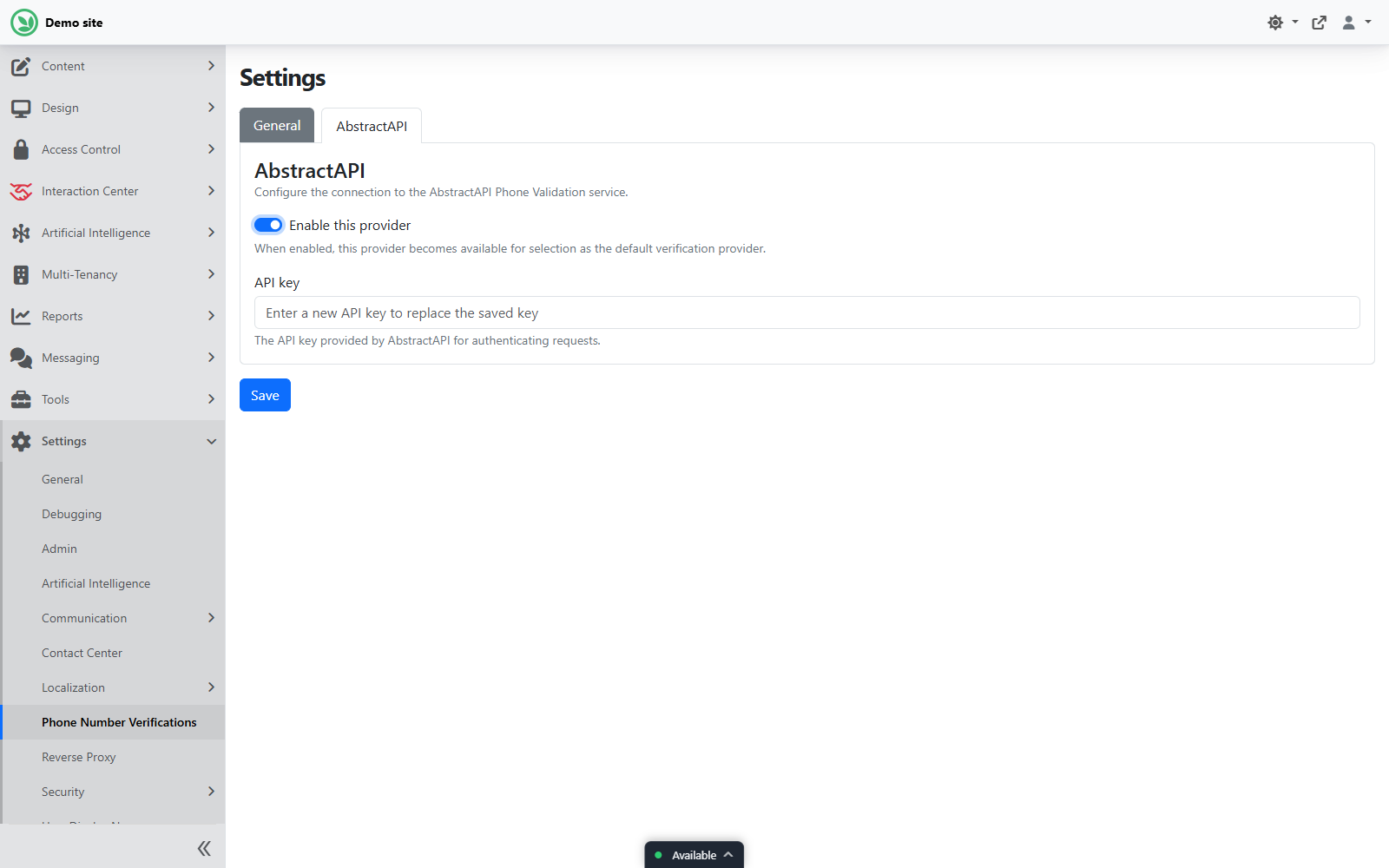
- Switch on Enable this provider. Its account fields appear.
- Enter the account details from the provider (see the tables below) and click Save.
- Open the General tab, check the settings below, and click Save.
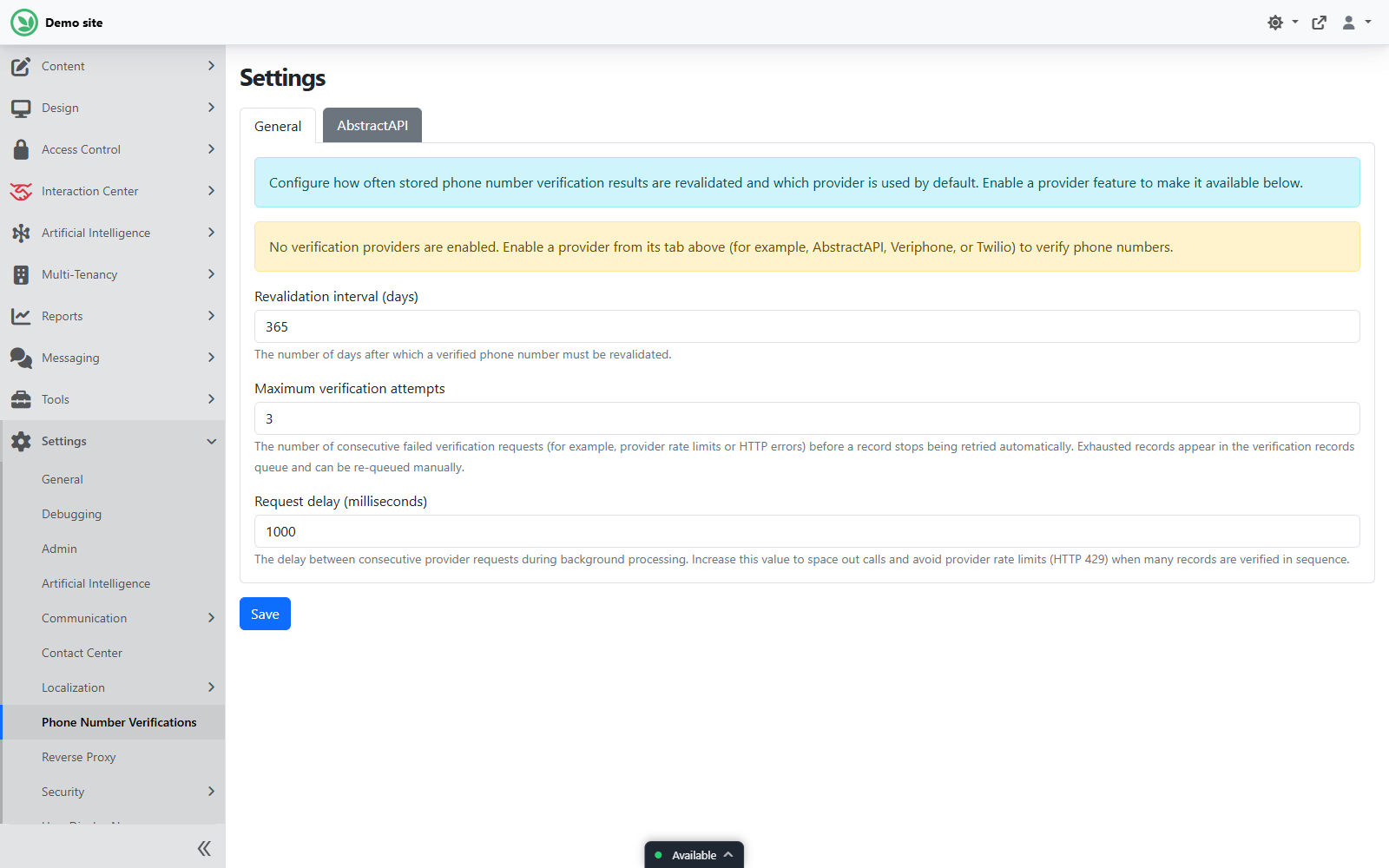
General tab
| Field | What it does |
|---|---|
| Default provider | The service used for checks. Only providers switched on in their own tab are listed. First available provider uses the first one that is switched on. The menu is hidden until at least one provider is switched on. |
| Revalidation interval (days) | How many days a verified number stays verified before it is checked again. Default 365. |
| Maximum verification attempts | How many failed checks in a row, for example because the service was busy, before the site stops retrying a number by itself. Default 3. |
| Request delay (milliseconds) | The pause between checks when many numbers are checked in a row. Default 1000. Raise it if the service complains about too many requests. |
AbstractAPI and Veriphone tabs
| Field | What it does |
|---|---|
| Enable this provider | Makes the service available for checks and for Default provider. |
| API key | The API key from your AbstractAPI or Veriphone account. |
Twilio tab
| Field | What it does |
|---|---|
| Enable this provider | Makes Twilio available for checks and for Default provider. |
| Authentication type | API key SID and secret (recommended by Twilio for everyday use) or Account SID and Auth Token (for testing). |
| API key SID / API key secret | Used with API key SID and secret. |
| Account SID / Auth Token | Used with Account SID and Auth Token. |
| Country code | Optional two-letter country code, for example US, used when numbers are stored without their country code. |
| Data packages | Optional extra Twilio information to request, separated by commas, for example line_type_intelligence. Basic validation is always included. Extra packages can cost more; check with whoever manages your Twilio account. |
After you save an API key, secret or token, the box stays empty and a green note says one is stored. Leave the box empty to keep it, or type a new value to replace it. If you switch a provider off, its account fields are hidden and it is no longer used.
What the status icons mean
Wherever a phone field shows a checked number, an icon shows the result. Point at it to see the details and the date of the check.
| Icon | Meaning |
|---|---|
| Green check | Verified: the service confirmed the number. |
| Red cross | Invalid: the service says the number is not valid. |
| Warning sign | Failed: the check itself did not work, for example the service was unavailable. The number's status is unknown, not invalid. |
| Grey question mark | Not checked yet. |
A failed check never marks a number as invalid. If a number was verified before, a later failed check leaves it verified.
On a contact type that has the Phone Number Verification part, the item also shows a Phone Number Verification card with the status, normalized number, provider, line type, line status, carrier, the last and next check dates, and the attempt counts. The site keeps it up to date; nobody edits it by hand.
Work the verification queue
Open Tools > Phone Verifications Queue to see every number that has verification data.
- Click a tile (All, Verified, Invalid, Failed, Pending or Needs attention) to show only those records. The tiles never overlap and always add up to the total.
- Pending: waiting to be checked.
- Failed: the last check failed, and the site will try again by itself.
- Needs attention: failed Maximum verification attempts times in a row, so the site stopped trying. The latest error is shown in red.
- Use Search by phone number and Sort by (Recently attempted, Least recently attempted, Recently created, Oldest created) to find a record.
- Click Retry now on a record, tick records (or Select all on this page) and click Retry selected, or click Retry all failed to retry every failed and needs-attention record on every page that matches your search.
Retries need the Verify phone numbers permission. They are queued, not instant: the records show Pending right away and are checked shortly after, spaced out by the Request delay.
Read the report
Open Reports > General > Phone Number Verifications.
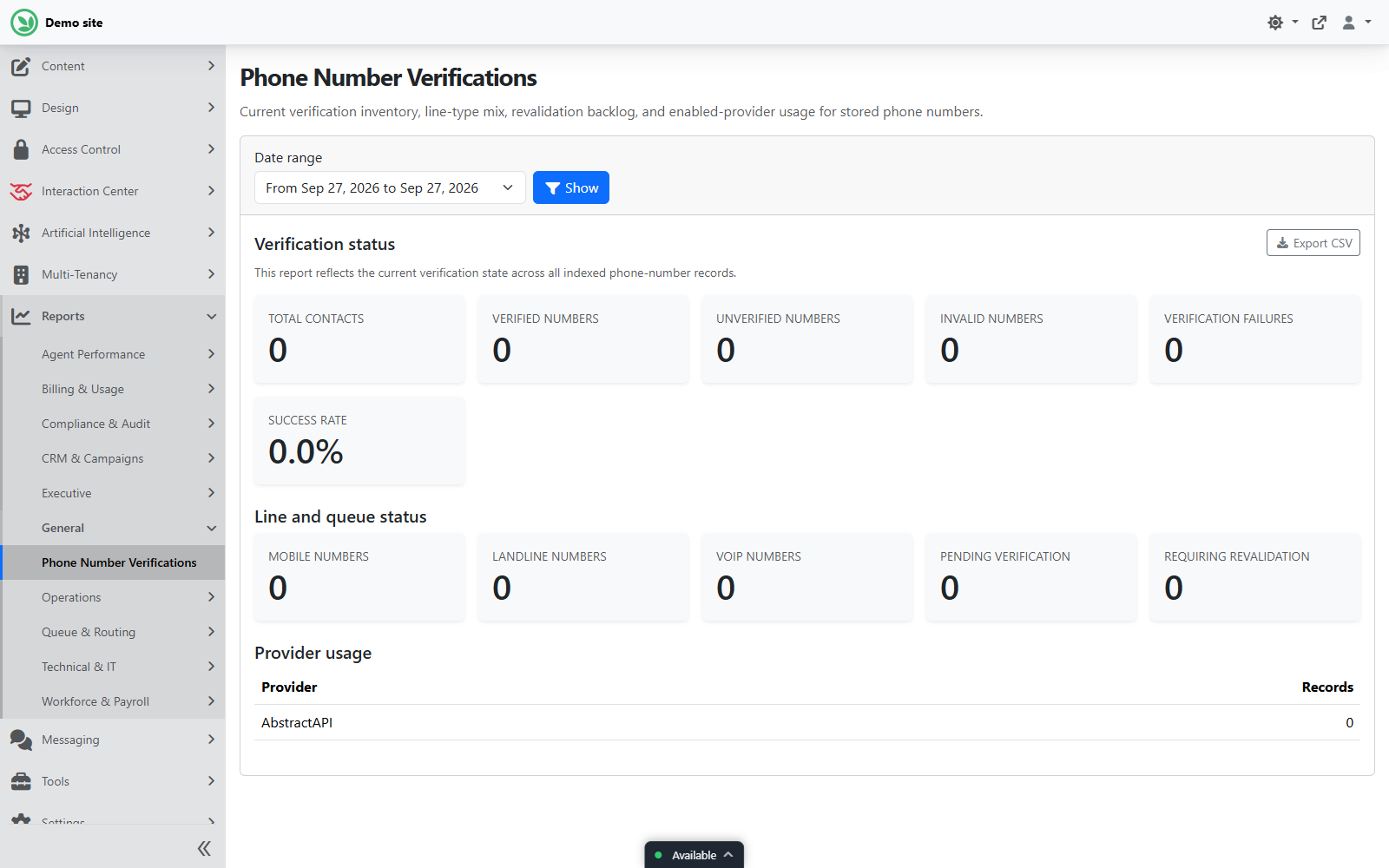
| Section | What it shows |
|---|---|
| Verification status | Total contacts, verified, unverified and invalid numbers, verification failures, and the success rate. |
| Line and queue status | Mobile, landline and VoIP numbers, numbers pending verification, and numbers requiring revalidation. |
| Provider usage | How many records each provider checked. |
The report shows the current state of all numbers. Use the export button to download it as a file. See Reports for how report pages work.