AI Profiles
An AI profile is one AI assistant or task with its own name, instructions, model, knowledge and tools. Every chat, chat widget, AI text or phone conversation and AI workflow task runs on a profile. Create one profile per job, for example a Website assistant for visitors, a Policy helper for staff, and a Chat summarizer that works in the background.
| Menu | Artificial Intelligence > Profiles |
| Permission | Manage AI profiles |
| Feature | AI Services; chat profiles also need AI Chat |
What you see depends on your role. If the menu, a button or a setting on this page is missing, ask your administrator to give you the permission listed above or to turn on the feature. Only administrators can turn features on and change site settings.
Before you create a profile, an administrator must connect at least one AI provider and add a chat deployment. See Connections and deployments.
Profile types
| Type | What it is for |
|---|---|
| Chat | An assistant people talk to: on its chat page, in a chat widget, or in automated text and phone conversations. |
| Utility | A task that runs in the background, for example from a workflow, such as summarizing or classifying text. It has no chat page. |
| Template generated prompt | A ready-made prompt that runs against an existing chat, such as "Summarize this conversation". It appears in the wrench menu beside the chat's message box. |
| Agent | A specialist that other assistants can call for help, such as a research or writing agent. See Tools and agents. |
Create a profile
- Open Artificial Intelligence > Profiles and click Add Profile. The New AI Profile picker opens.
- Pick a starting point and click its Start button, or pick Blank profile to fill in everything yourself.
- For a starting point, complete the short setup step and click Create profile. For a blank profile, fill in the editor and click Save.
When a site has no profiles yet, the empty list shows a Choose a starting point button that opens the same picker.
Pick a starting point
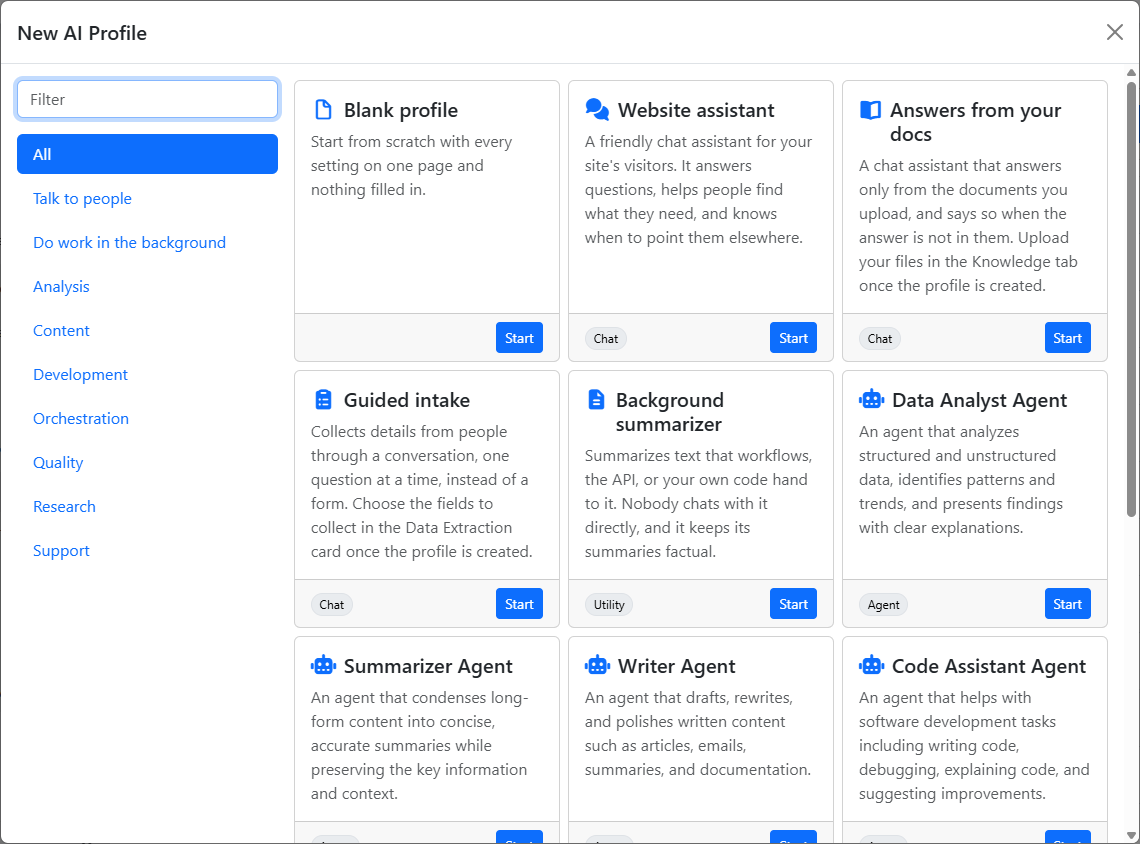
- Blank profile is always the first card. It opens the full editor with nothing filled in.
- Every other card is a ready-made starting point. It shows a title, a description, the kind of profile it creates (Chat, Utility, Agent) and a Start button.
- Type in Filter to narrow the cards, or pick a category on the left. All shows everything again.
- A card that needs a feature that is not turned on is greyed out with "Enable feature name to use this." Ask your administrator to turn the feature on.
The site comes with these starting points (some only when their feature is on):
| Category | Starting points |
|---|---|
| Talk to people | Website assistant (a friendly assistant for your site's visitors), Answers from your docs (answers from documents you upload), Guided intake (collects details from a visitor step by step) |
| Do work in the background | Background summarizer (a utility profile) |
| Text messaging | Qualify leads by text, Customer care by text |
| Phone calls | Answer calls at the front desk, Qualify leads by phone, Confirm appointments by phone |
| Agent categories, such as Research, Content and Analysis | Building-block agents such as Research Agent, Writer Agent, Summarizer Agent, Data Analyst Agent and Reviewer Agent |
Profile templates that your team creates under Artificial Intelligence > Templates also get a card. See Templates.
Set it up
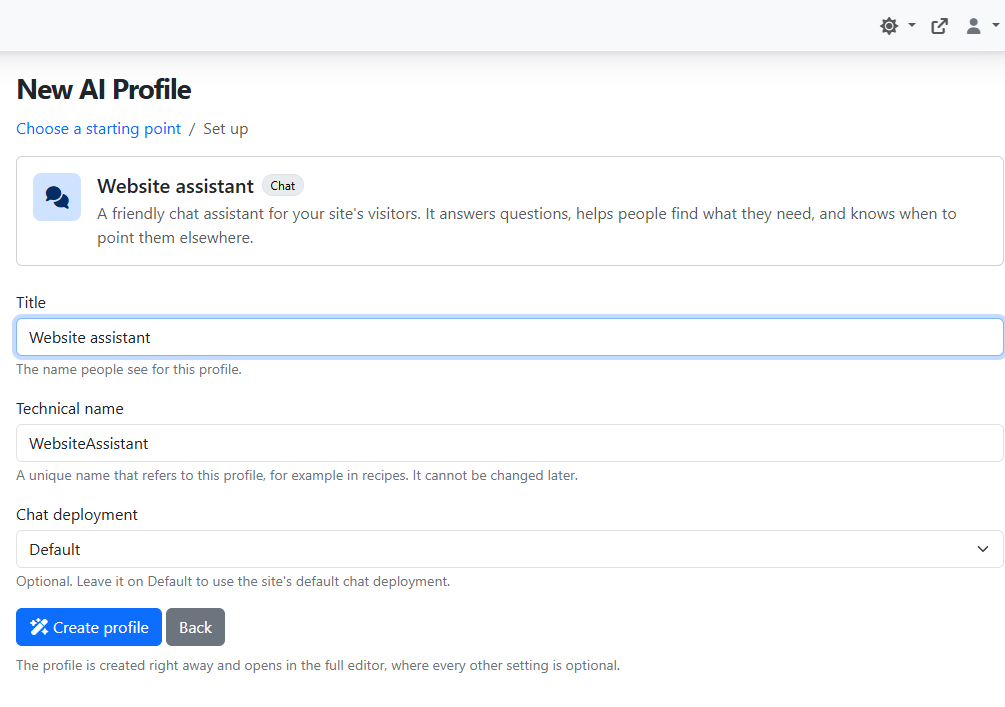
| Field | What it does |
|---|---|
| Title | The name people see. It starts with the starting point's name. |
| Technical name | A unique name used behind the scenes. It follows the title as you type, and cannot be changed later. |
| Chat deployment | The model the profile talks to. Leave Default to use the site's default chat deployment. A warning shows when the site has no default. |
Click Create profile. The profile is saved at once and opens in the full editor with the note "Everything below is optional". Click Back to return to the picker.
After you create one of these, finish it in the editor:
- Answers from your docs: upload your documents on the Knowledge tab.
- Guided intake: choose the details it collects under Enable data extraction on the Data Processing & Metrics tab.
- Text messaging and Phone calls starting points: add your business name to the Opening message, and fill in the About the business part of the System instructions. Until you do, the assistant treats anything in square brackets as unknown and offers a follow-up from your team instead of guessing. Then choose the profile where the conversations start, as described in Automated AI SMS and Voice.
Edit, clone and delete
- Click Edit on a profile to change it, then Save.
- Open the profile's Actions menu and choose Clone to start a new profile from a copy. The copy opens unsaved, named "Copy of" the original; check its title and technical name, then Save.
- Actions > Delete removes a profile after you confirm. Profiles marked System cannot be deleted.
- To delete several profiles, tick them, then choose Actions > Delete above the list.
The Actions menu also has New chat, View chat history and Delete chat history for chat profiles, and Invoke Profile for utility and agent profiles. See Chat with an AI assistant.
The profile editor
The editor opens on a page of cards with the main settings. Other settings sit on the Knowledge, Capabilities and Data Processing & Metrics tabs. Some fields only appear for some profile types, or when a feature is turned on.
General
| Field | What it does |
|---|---|
| Title | The name people see. Required. |
| Technical name | A unique name used behind the scenes. Set once, when you create the profile. |
| Orchestrator | The engine that plans the answer and decides which tools to use. Shown only when your site has more than one, for example a GitHub Copilot or Claude engine. Leave the default unless you were told otherwise. |
| Profile type | Chat, Utility, Template generated prompt or Agent (see Profile types). |
| Description | Agents only, required. Tells other assistants what this agent does, so they know when to call it. |
| Availability | Agents only. On demand (included only when it matches what the user asks) or Always available (included in every AI request, which uses more tokens and costs more). |
| Title type | Chat only. Use the first question as the chat title, or let the AI generate a title from it. |
| Start the conversation automatically | Chat only. The assistant speaks first. Then you write an Opening message instead of a Welcome message. Automated text and phone conversations only offer profiles with this turned on. |
| Welcome message | Chat only. Text shown in an empty chat before the user types, for example "Hi! Ask me about our products." |
| Opening message | Chat only, when the assistant starts the conversation. The first message the assistant sends. Required in that case. |
| Prompt subject | Template generated prompt only. A title shown as the header of each answer the prompt produces. |
| Show on admin menu | Chat only. Adds the assistant to the Artificial Intelligence menu, so people can open its chat page. On by default for new chat profiles. |
| Initial response handler | Shown only when your site has other handlers, such as a live agent platform. Default (AI) lets the AI answer new chats; another handler sends the messages of a new chat to that system instead. |
When the Orchestrator is GitHub Copilot or Claude, a configuration block appears with a model picker, an Effort level (Default, Low, Medium, High) and, for Copilot, a Sign in with GitHub button and Allow all tool executions. Your administrator sets these engines up first under Settings > Artificial Intelligence.
Deployments & Interactions
| Field | What it does |
|---|---|
| Chat deployment | The model the profile talks to. Default uses the site default. It also answers typed messages during a spoken conversation. |
| Model parameters | Options the chosen model supports, such as reasoning effort. Use deployment default keeps the model's own setting. |
| Chat mode | Chat only. Text only (typing), Audio input (adds a microphone to dictate) or Conversation (adds spoken back-and-forth). Shown only after the profile is saved as a chat profile and the site has a speech model. |
| Conversation deployment | Conversation mode only. The voice model that carries the spoken conversation. Leave it empty to use the site's default. |
| Voice | Conversation mode only. The voice the assistant speaks with. Default voice uses the site's default. |
| Enable text-to-speech playback | Adds a Read aloud button to every answer. |
| Utility deployment | A smaller, cheaper model for side jobs, such as planning and working out what the user wants. Leave it on the default unless told otherwise. |
The deployment fields are hidden when a GitHub Copilot or Claude orchestrator is chosen, because those engines pick their own model.
Instructions
| Field | What it does |
|---|---|
| System instructions | What the assistant is, what it should and should not do, and how it should answer. This is the most important setting. Write it in plain language. |
| Prompt template | Template generated prompt only, required. The prompt that runs against the chat. |
| Prompt templates | Reusable pieces of instructions added on top of yours, such as "Use Markdown syntax". Click Add prompt template, search, and pick one. See Templates. |
Say who the assistant is for, what it helps with, what it must never do, and what to do when it does not know: "You help customers of Contoso Bikes with orders and repairs. Answer only from the provided documents. If you are not sure, offer to have the team call back." Short, direct sentences work best.
Parameters
These fine-tune how the model writes. Leave them empty to use the defaults.
| Field | What it does |
|---|---|
| Max response | The longest answer, in tokens (roughly word pieces). Lower values keep answers short and costs down. |
| Temperature | From 0 to 1. Lower values give focused, predictable answers; higher values give more varied, creative answers. Change this or Top P, not both. |
| Top P | From 0 to 1. Another way to control how varied the answers are. |
| Frequency penalty | From 0 to 1. Higher values make the assistant repeat the same words less. |
| Presence penalty | From 0 to 1. Higher values make the assistant bring up new topics more. |
| Past messages included | Chat only, 2 to 20. How many earlier messages of the chat the assistant sees with each question. More gives better follow-ups but costs more. |
| Use caching | Shown only when the site caches AI answers. Lets the profile reuse answers to identical requests. |
Prompt Security
You only need this card for a public chat profile, or when a profile needs limits that differ from the site's. Each field overrides the site-wide limit for this profile; leave it empty to keep the site's value, shown in the field.
| Field | What it does |
|---|---|
| Maximum messages per window / Message rate-limit window (seconds) | How many messages one person can send in the given time. 0 turns the limit off for this profile. |
| Anonymous message rate-limit tiers | Several message limits for visitors who are not signed in, one per line, such as a short burst limit and a daily limit. Tick Do not use tiered anonymous message limits for this profile to use the single limit above instead. |
| Maximum anonymous sessions per window / Anonymous session window (seconds) | How many new chats a visitor who is not signed in can start in the given time. |
| Anonymous session-start rate-limit tiers | Several new-chat limits for visitors, one per line. Tick Do not use tiered anonymous session-start limits for this profile to use the single limit instead. |
The format of the tier lines and how the limits combine are explained in the Technical Manual.
Knowledge tab
Give the assistant your own content, and let users attach files. See Knowledge for how each option works.
| Field | What it does |
|---|---|
| Enable user memory | Lets the assistant remember signed-in users' preferences between chats. See Memory. |
| Allow session document uploads | Lets users attach documents to a chat. |
| Allow session image uploads | Lets users attach pictures to a chat. Needs a model that can read images. |
| Largest document that can be indexed / Describe figures in uploaded documents | Limits for attached documents. Leave on the site default. |
| Document Top N | How many matching passages from the profile's documents the assistant reads for each question. Default 3. |
| Document retrieval mode | Chunk (only the matching passages) or Hierarchical (the whole documents the passages come from). Default setting uses the site's choice. |
| Data source | A knowledge base the assistant answers from. No data source for none. |
| Filter | Narrows which entries of the data source are searched. Ask your technical team for the expression. |
| Restrict answers to retrieved data only | The assistant answers only from your content, never from general knowledge. |
| Strictness | From 1 to 5: how closely a passage must match the question to be used. Empty uses the default of 3. |
| Retrieved documents | From 3 to 20: how many passages are retrieved. |
| Documents | Drag files here or click Browse Files to upload documents the assistant always uses. Supported formats lists the file types. Files are added or removed when you save. |
Capabilities tab
Let the assistant do things beyond answering. See Tools and agents.
| Section | What it does |
|---|---|
| MCP Connections | External tool servers the assistant may use. |
| A2A Connections | Remote AI agents the assistant may call. |
| Agents | Agent profiles on this site the assistant may call. Select All Agents picks all of them. |
| Tools | Built-in actions, grouped by category. Search with Search tools..., or use Select All Tools and Select All in category. |
| Tool Instances | Tools your team set up, such as a call to your order system. |
A user can only use a tool their role is allowed to use, even when the profile has it. See Who can use tools.
Data processing and metrics
The Data Processing & Metrics tab decides what happens with a chat while it runs and after it ends.
| Field | What it does |
|---|---|
| Session inactivity timeout (minutes) | A chat with no messages for this long is closed. At least 1 minute; default 30. Closing a chat starts post-session processing and the AI Chat Session Closed workflow event. |
| Enable data extraction | The AI picks out details from the conversation as it goes, such as a name, an email address or a product of interest. |
| Extraction check interval | Check for new details every this many user messages. Default 1 (every message). |
| Extraction entries | Click Add Entry for each detail: a Name (letters, numbers and underscores, such as customer_email), a Description that tells the AI what to look for, Allow Multiple Values, and Updatable (a later answer may replace the value). |
| Enable post-session processing | After the chat closes, the AI analyzes the whole conversation. |
| Post-session tasks | On the Tasks tab, click Add Task: a Name, a Type (Semantic for free text such as a summary, or Predefined Options to pick from a list such as Resolved, Escalated, Abandoned) and Instructions. For Predefined Options, add each choice with Add Option (a Value and a Description) and choose Allow multiple values if needed. On the Capabilities tab, pick tools the AI may use while it analyzes. |
| Enable session metrics | Chat only. Collects the numbers for the chat analytics report, and adds thumbs up and down buttons to answers. |
| Enable AI resolution detection | Chat only. The AI decides whether each closed chat solved the user's problem. |
| Enable conversion metrics | Chat only. The AI scores each closed chat against your goals. Click Add Goal for each: a Name, a Description of what to judge, and a Min score and Max score (0 to 10 by default). |
Extracted details and post-session results can be reviewed in the analytics reports and used in workflows. The analytics fields appear only after the profile is saved as a chat profile, and only when the AI Chat Session Analytics feature is on.
Things to know
- Chat mode and the analytics fields depend on the saved profile type. After you change a profile to Chat, save it once to see them.
- Profiles created from a starting point copy everything the template carries, including its documents, so later changes to the template do not change existing profiles.
- A profile can only be as good as its model, its instructions and its knowledge. When answers are off, check the System instructions first, then the Knowledge tab.