Soft Phone Browser Extension and Windows App
A phone that lives inside a web page loses its call when you reload or leave the page. The two phone apps fix that. Each opens your site's phone in its own window and keeps a background connection that rings for incoming calls, even while the phone window is closed.
| Browser extension | Windows app | |
|---|---|---|
| Runs in | Chrome 116+ or Firefox 140+ | Windows 10 (1809) or later, x64 and ARM64 |
| Get it from | The Chrome Web Store or Firefox Add-ons, or the GitHub releases | The installer, portable zip or MSIX on the GitHub releases, or the Microsoft Store |
| Source | CrestApps/CrestApps.SoftPhone | CrestApps/CrestApps.SoftPhone.Windows |
Both apps show your site's own /softphone page, so the call controls are exactly the ones described in Placing and handling calls. They talk only to the site you configure, and they use your normal site sign-in; there is no separate password.
Before you start (administrator)
- Enable the Telephony Soft Phone Extension feature (
CrestApps.OrchardCore.Telephony.SoftPhone.Extension). It adds the/softphonepage the apps open. - Give the users the Use the telephony soft phone permission.
- Tell your users the site's domain, for example
phone.example.com.
Browser extension
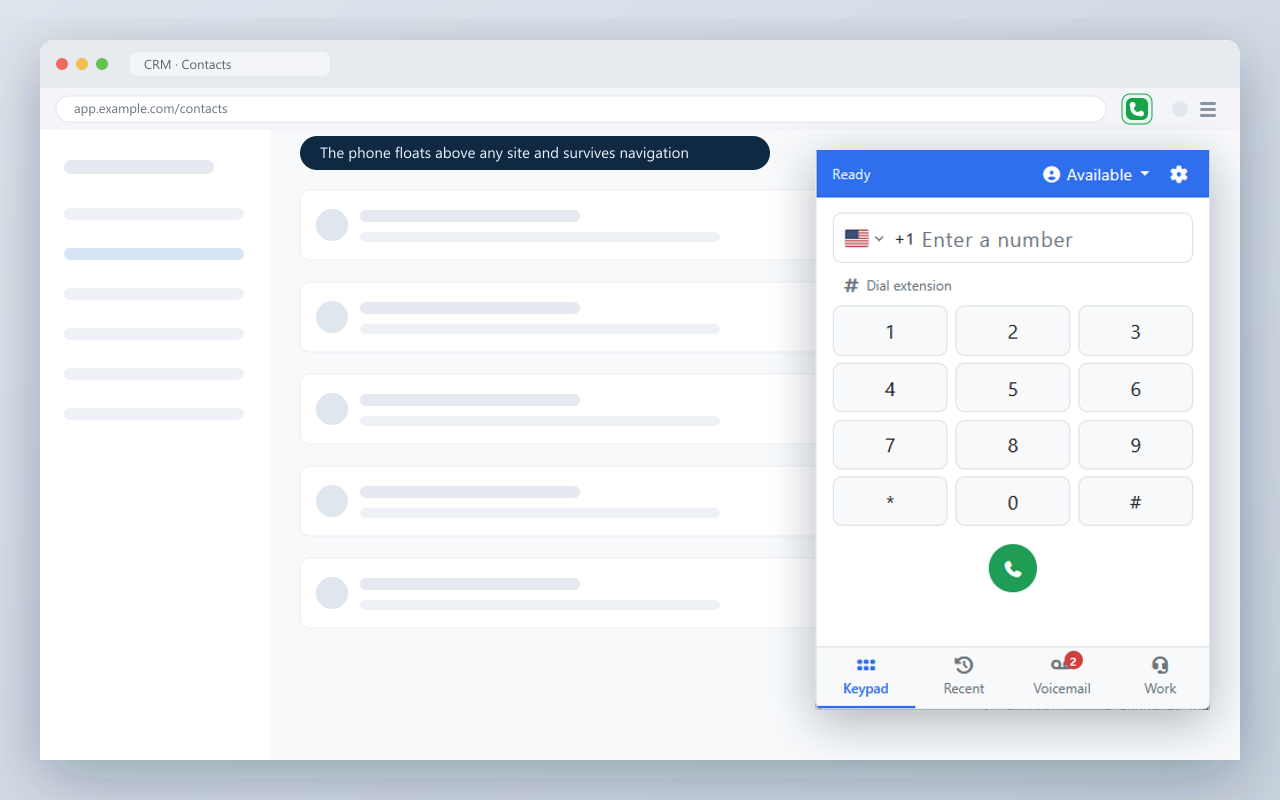
- Install CrestApps Soft Phone from the Chrome Web Store or Firefox Add-ons.
- Open the extension's options, enter your site's domain without
https://, and click Save & grant access. The browser asks for access to that one site only. - Sign in to the site in the same browser, then click Open Soft Phone (or the toolbar button).
- The phone opens in its own window, which remembers its size and position. Click the toolbar button to collapse it to a small circle and back. Pin the button to the toolbar so it is always one click away.
When a call comes in, you get a popup with Answer, Decline and Voicemail, a ringtone, and a desktop notification. In Chrome, clicking the notification answers; its buttons decline or send to voicemail. The options page also has Enable diagnostics, which adds Run connection test and Simulate incoming call.
Windows app
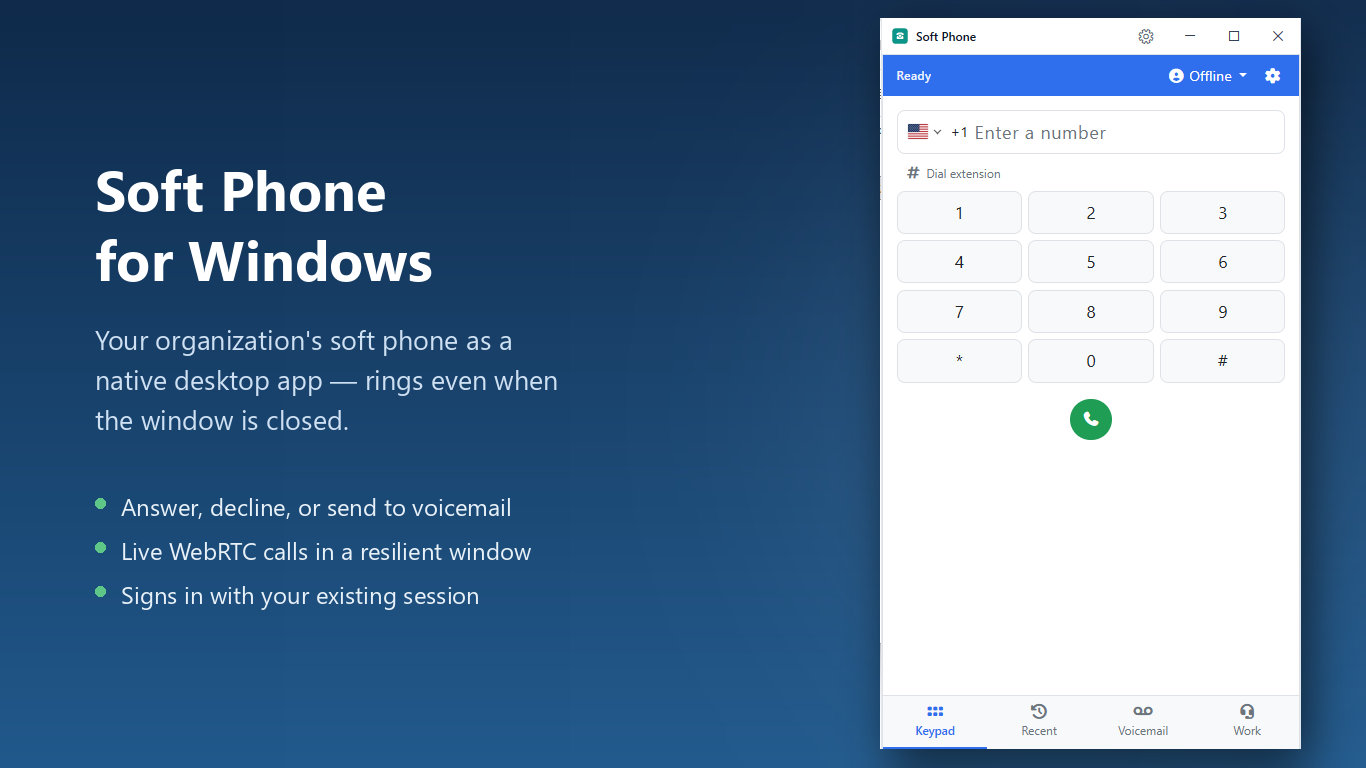
- Download and run
SoftPhone-Setup-vX.Y.Z.exefrom the GitHub releases. It installs for your user only, with no administrator rights. You can also use the portable zip, or the Microsoft Store where your organization has published it. - Enter your site's domain when asked (the installer can ask for it up front) and choose whether to start with Windows, play a ringtone and keep the phone on top.
- Sign in to the site inside the app window.
- The app lives in the system tray. Right-click the tray icon for Open phone, Settings and Quit. Closing the phone window keeps the app running so calls still ring.
Incoming calls raise a Windows notification and a call window with the caller, the queue, and matched records, with Answer, Decline and Voicemail. While the app's notification is showing, the phone page does not show its own incoming-call window, so you are not asked twice.
Settings has a General tab (site domain, start when I sign in, play ringtone, always on top, developer tools, reload phone) and a Diagnostics tab with Run connection test and a live connection indicator. IT departments can push and lock the domain and other settings through Group Policy or Intune; see the app's enterprise deployment guide in its repository.
The Enable the soft phone setting hides the in-page phone only. The apps keep working while the Soft Phone Extension feature is enabled; disable that feature to stop them.