AI Chat
AI Chat Feature
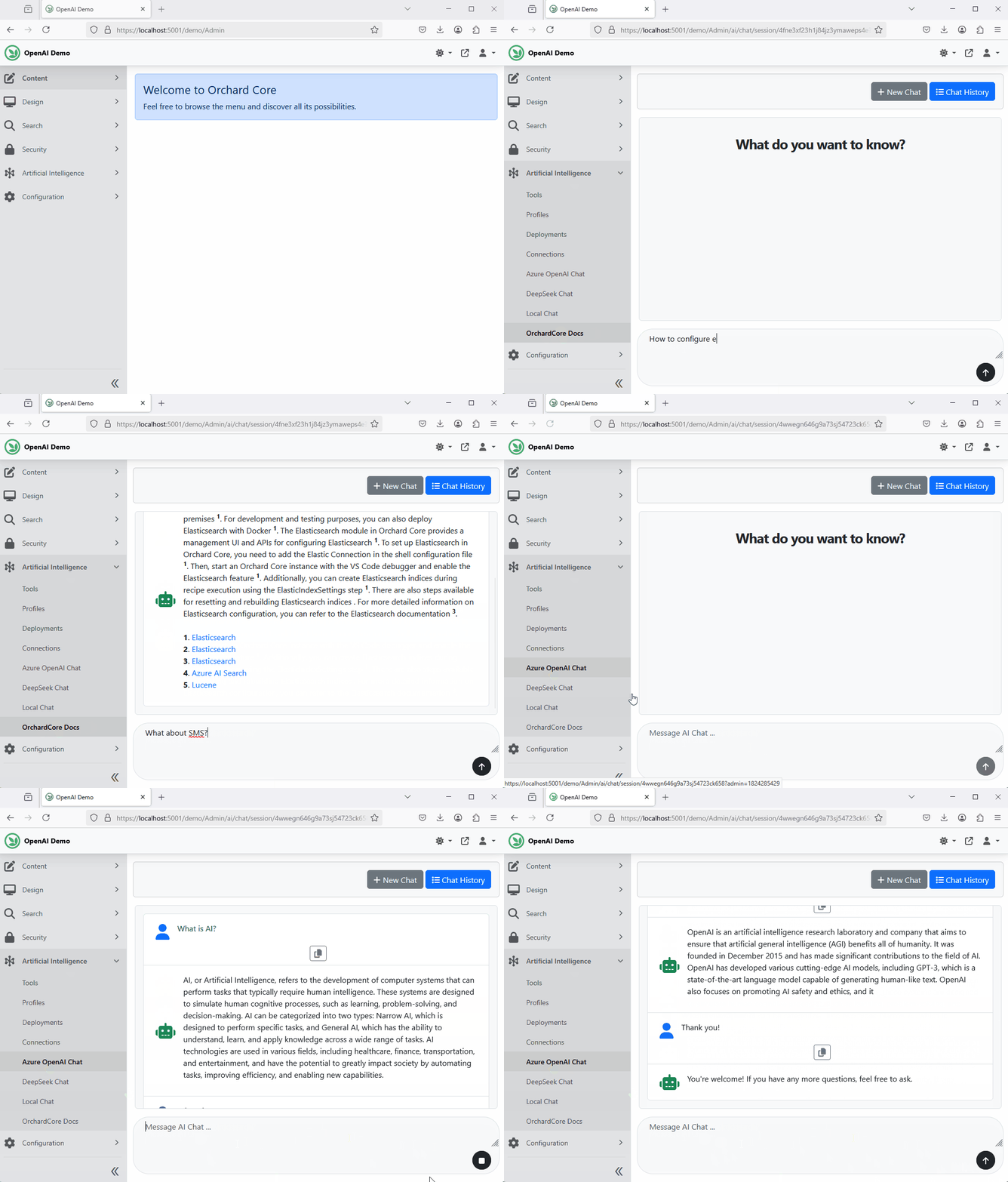
The AI Chat feature builds upon the AI Services feature by adding AI chat capabilities. Once enabled, any chat-type AI profile with the "Show On Admin Menu" option will appear under the Artificial Intelligence section in the admin menu, allowing you to interact with your chat profiles.
Note: This feature does not provide completion client implementations (e.g., OpenAI, Azure OpenAI, etc.). To enable chat capabilities, you must enable at least one feature that implements an AI completion client, such as:
- OpenAI AI Chat (
CrestApps.OrchardCore.OpenAI): AI-powered chat using OpenAI service. - Azure OpenAI Chat (
CrestApps.OrchardCore.OpenAI.Azure): AI services using Azure OpenAI models. - Azure AI Inference Chat (
CrestApps.OrchardCore.AzureAIInference): AI services using Azure AI Inference (GitHub models) models. - Ollama AI Chat (
CrestApps.OrchardCore.Ollama): AI-powered chat using Ollama service.
Admin Chat User Interface
Admin Chat Widget
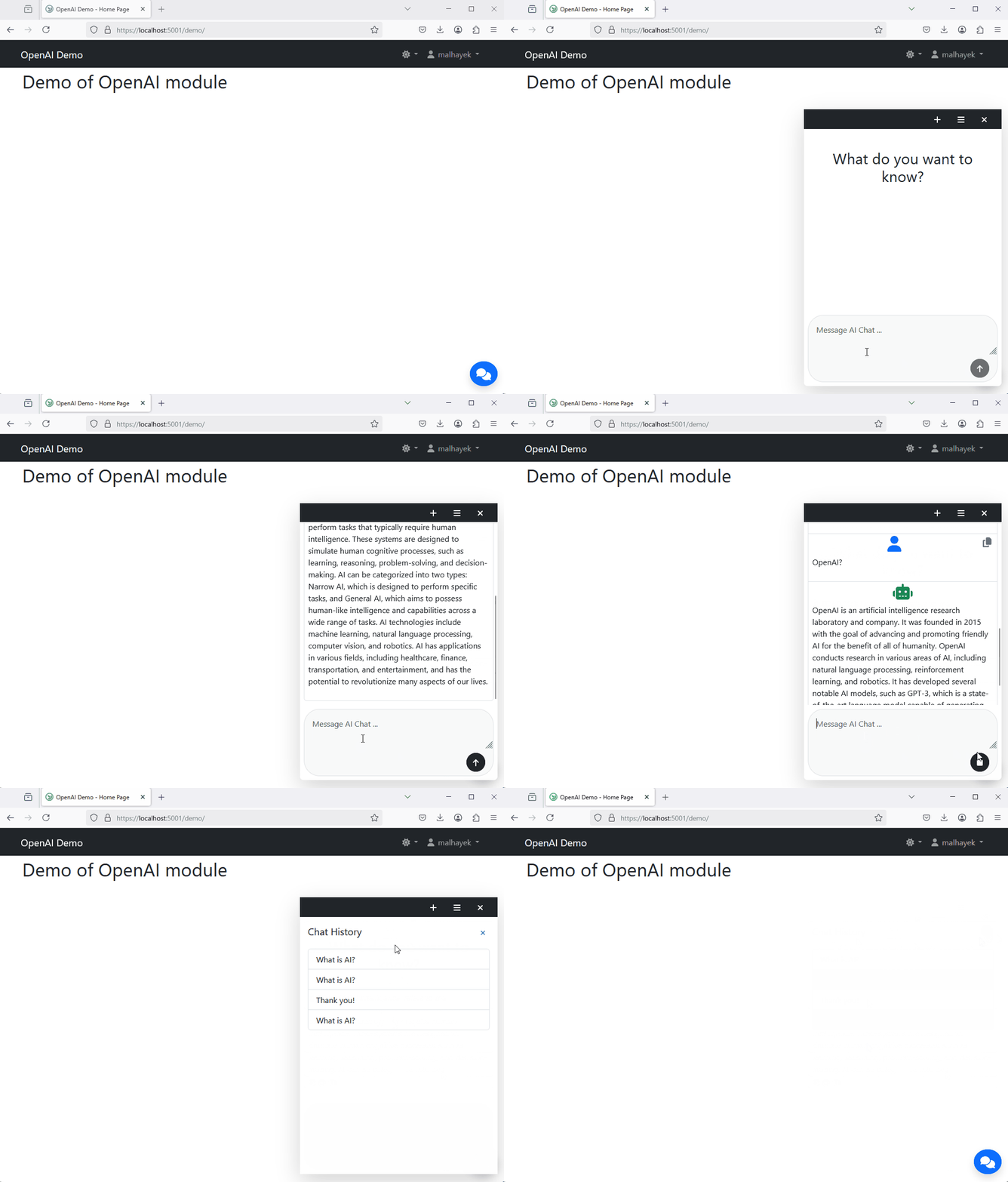
The AI Chat Admin Widget (CrestApps.OrchardCore.AI.Chat.AdminWidget) adds a floating chat widget to the Orchard Core admin dashboard. This allows administrators to interact with AI directly from any admin page without navigating away.
Enabling the Admin Widget
- Go to Configuration > Features in the admin menu.
- Search for AI Chat Admin Widget and enable it.
- The floating chat widget will appear in the bottom-right corner of the admin dashboard.
Configuring the Admin Widget
Navigate to Configuration > Settings > AI Chat Admin Widget to configure:
- Profile: Select the AI chat profile to use for the admin widget.
- Max Sessions: Set the maximum number of previous chat sessions displayed in the history panel (1–50).
- Primary Color: Customize the widget's primary color (header, toggle button). Defaults to
#41b670(Orchard Core green).
The widget supports:
- Draggable toggle button and chat window.
- Resizable chat window with a restore-to-default-size button.
- Chat history that persists across page navigations.
- Code highlighting with syntax-aware coloring and copy-to-clipboard for code blocks.
Frontend Chat Widget
A frontend chat widget is available to add to your site's public-facing pages using the Orchard Core Widgets system. This allows site visitors to interact with AI chat directly on the frontend.
Adding the Frontend Widget
- Ensure the Widgets feature (
OrchardCore.Widgets) is enabled. - Go to Design > Widgets in the admin menu.
- Add a new AI Chat Widget to the desired zone (e.g., Footer, Content).
- Configure the widget by selecting the AI chat profile and optionally choosing a prompt template.
The frontend widget shares the same UI behavior as the admin widget, including:
- Draggable toggle button and chat window.
- Resizable chat window.
- Chat history persistence across page navigations.
- Code highlighting and copy-to-clipboard for code blocks.
Frontend Widget Screen Cast